Tryst on the Web: How to Use Tryst in Your Browser
You can use Tryst at jointryst.com on any phone or computer, no download needed. Here is how to sign in, add Tryst to your home screen and get notifications.
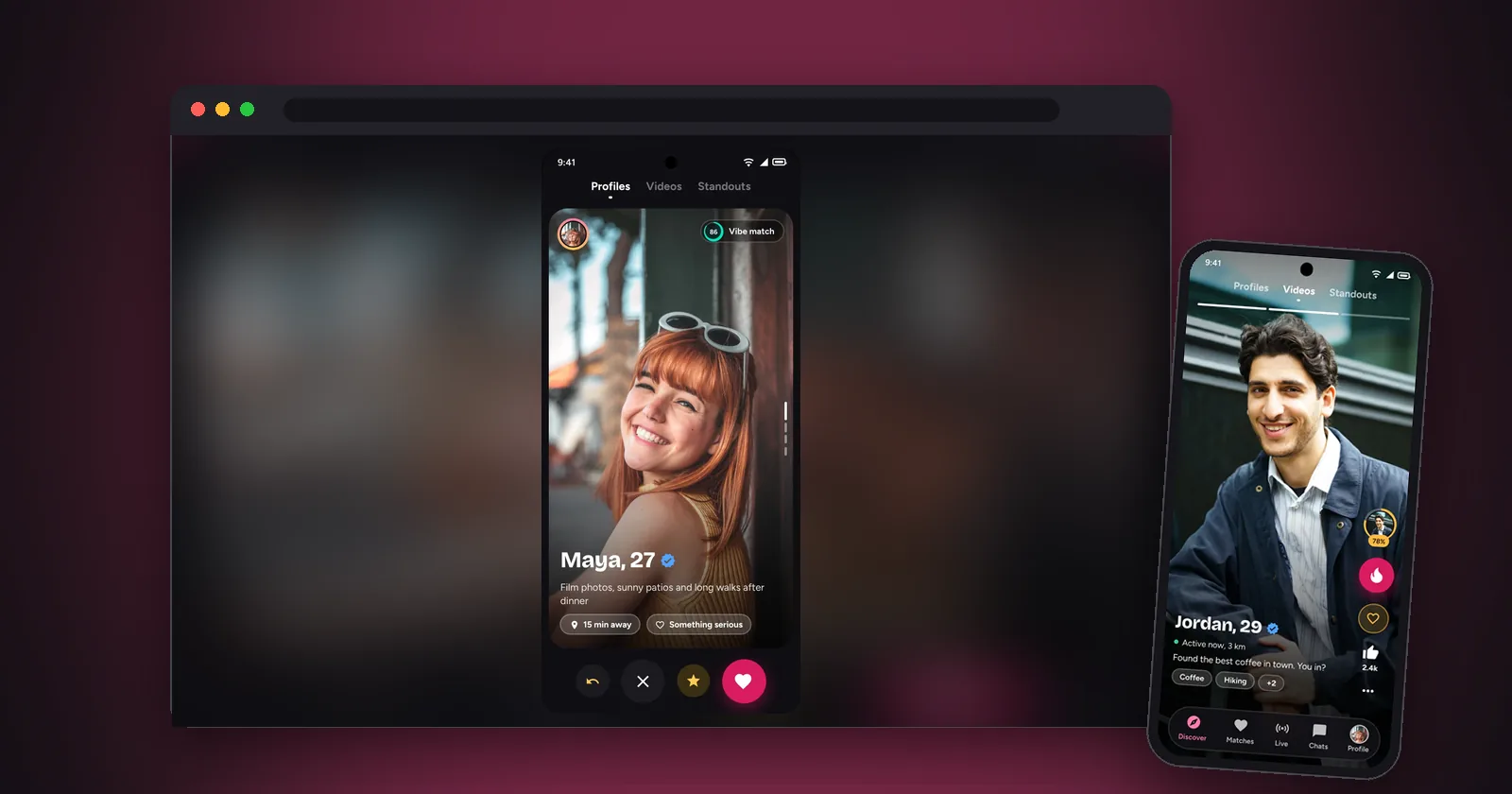
Tryst is not only an Android app. The full experience also runs in your browser at jointryst.com, on iPhone, Android, Mac, Windows or a tablet. Your account, matches and chats are the same everywhere.
Sign in
- Go to jointryst.com and tap Sign in.
- Choose your phone number, Google or email.
- Use the same method you used in the app, and your profile, matches and messages will be waiting.
New to Tryst? Signing in for the first time creates your account and walks you through setting up your profile.
What you can do on the web
- Browse Discover and like or pass on profiles.
- Watch the video feed and post your own clips.
- Chat with your matches and send voice notes.
- Make voice and video calls.
- Watch stories and live streams.
- Edit your profile, settings and privacy options.
- Manage Tryst VIP and coins.
Add Tryst to your home screen
You can install Tryst from the browser so it opens full screen like a regular app.
On iPhone or iPad (Safari): open jointryst.com, tap the Share button, then tap Add to Home Screen.
On Android (Chrome): open jointryst.com, tap the menu, then tap Install app or Add to Home screen.
On a computer (Chrome or Edge): click the install icon at the right of the address bar.
Notifications
Allow notifications when Tryst asks, so you hear about new matches and messages. On iPhone, notifications for web apps only work after you add Tryst to your home screen, so do that first.
Calls on the web
Calls work in the browser, but a browser can only ring while the Tryst page is open. If you are expecting a call, keep Tryst open in a tab. On Android, the Tryst app can ring even when it is closed.
Web or app?
Use whichever suits you. Many members swipe on their phone during the day and chat from a laptop in the evening. Everything stays in sync because it is one account.
Trouble signing in?
- Make sure you are using the same sign in method as before. A Google sign in and an email sign in create different accounts.
- Allow pop ups for jointryst.com if the Google window does not open.
- Still stuck? Contact support and we will help.