How to Cancel or Manage Your Tryst VIP Subscription
Step by step instructions to cancel, pause renewal or check your Tryst VIP membership on Android and on the web, plus what happens after you cancel.
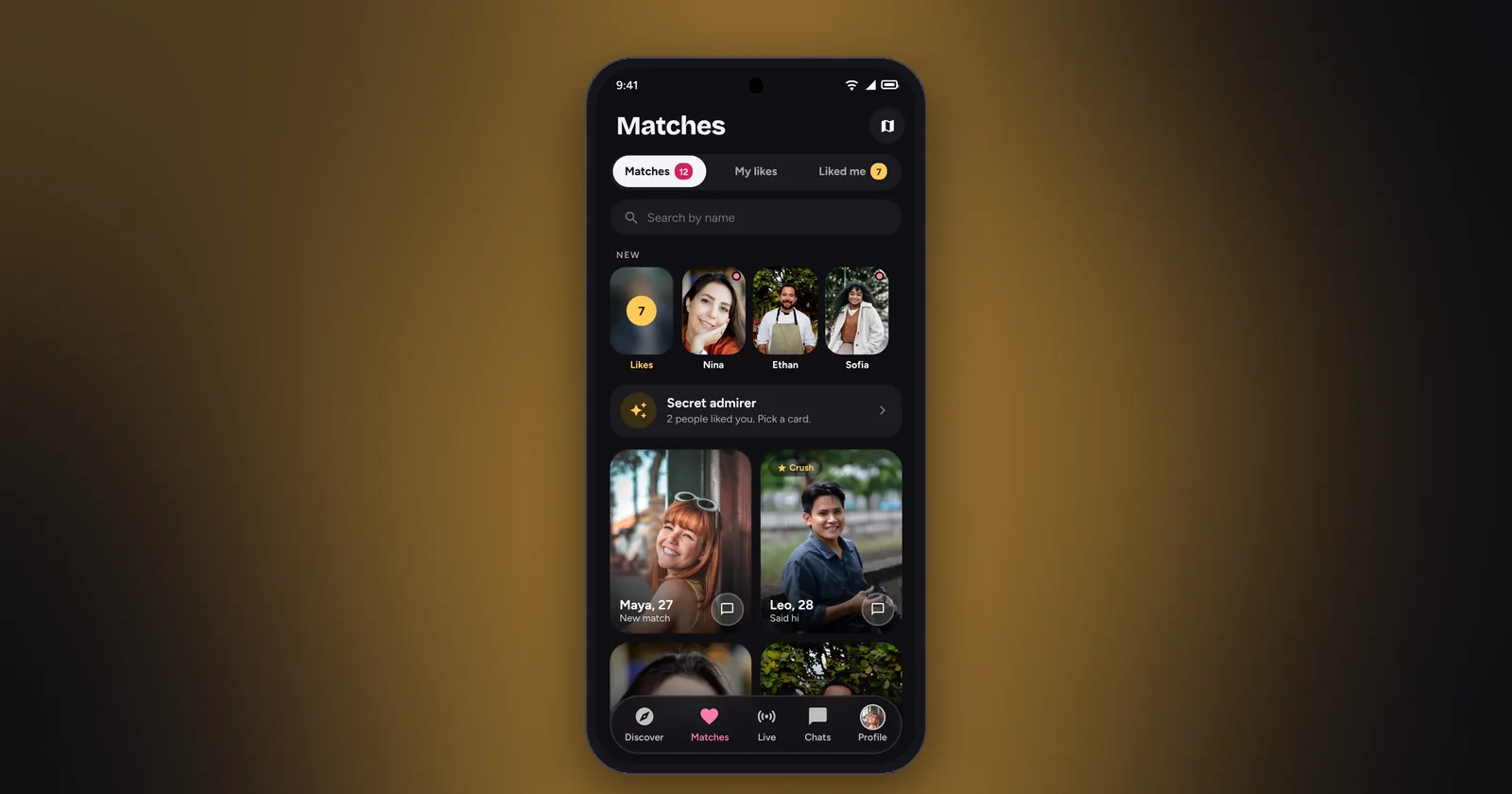
Tryst VIP renews automatically until you cancel. You can stop renewal at any time, and you keep your VIP benefits until the end of the period you already paid for. How you cancel depends on where you subscribed.
If you subscribed on Android (Google Play)
Subscriptions bought in the Android app are billed by Google Play, so they are managed in the Play Store.
- Open the Google Play Store app.
- Tap your profile picture at the top right.
- Tap Payments and subscriptions, then Subscriptions.
- Select Tryst.
- Tap Cancel subscription and follow the prompts.
You can also do this on a computer at play.google.com by opening the menu and choosing Subscriptions. Make sure you are signed in with the same Google account you used to subscribe.
If you subscribed on the web (PayPal)
Subscriptions bought at jointryst.com are paid through PayPal.
- Sign in at jointryst.com/vip.
- Under Membership, tap Stop renewal.
You can also cancel in PayPal: open your PayPal account, go to Settings, then Payments, then Manage automatic payments, select Tryst and cancel.
Deleting the app does not cancel VIP
Uninstalling Tryst or deleting your account does not stop a subscription by itself. Google Play and PayPal keep billing until the renewal is cancelled, so cancel first using the steps above.
What happens after you cancel
- You keep every VIP benefit until the end of your current billing period.
- When it ends, your account returns to the free plan. Your profile, matches and chats stay exactly as they are.
- Coins you already own stay in your balance.
- You can rejoin VIP whenever you like.
Check whether your VIP is active
In the app or on the web, open your profile or Settings, then Tryst VIP. If your membership is active, you will see where it was purchased and the date it runs until.
Charged after cancelling?
Check that you cancelled in the right place. A Google Play subscription cannot be cancelled in PayPal, and a PayPal subscription does not appear in Google Play. If you still need help, contact Tryst support with the email on your account and the date of the charge. Refunds for Google Play purchases are handled by Google under its refund policy.